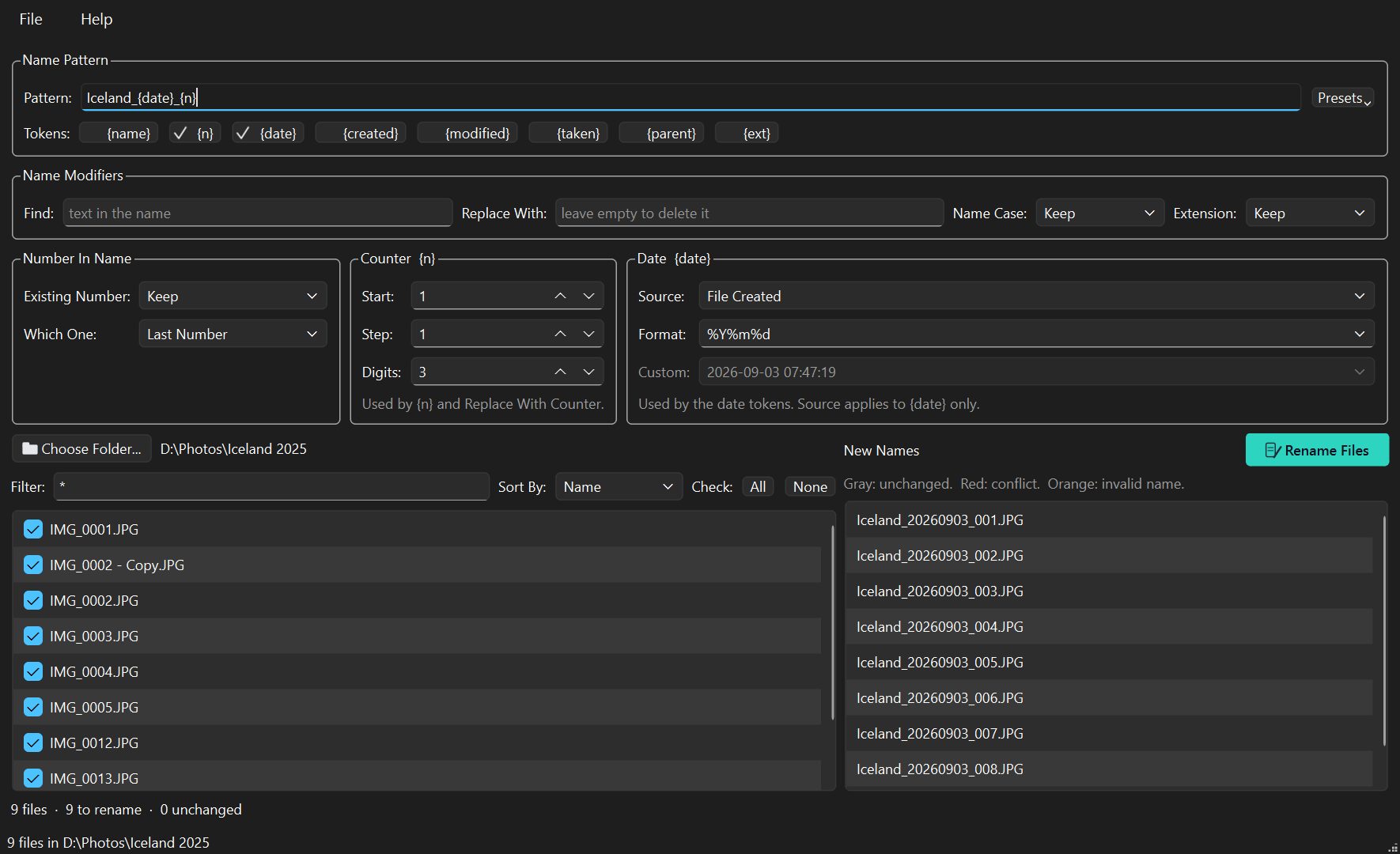
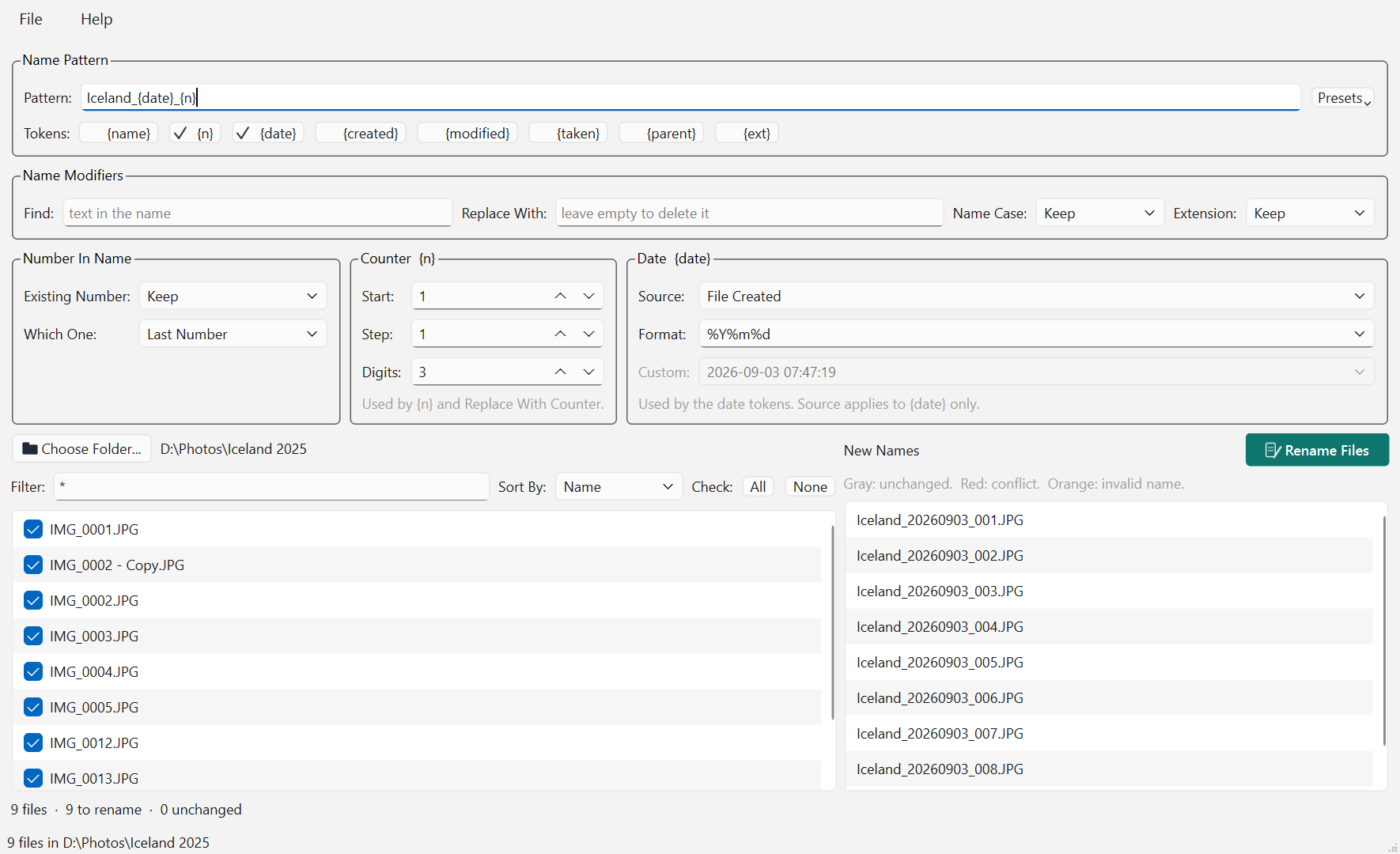
The File Rename Processing Workbench shows you every new name
before a single file changes. Build the name from a pattern, watch the list on the
right update as you type, and rename only when nothing collides.
Version 1.0.1 · Windows and macOS · free and open source ·
works entirely on your own machine
Why not just rename them in Explorer?
Selecting a hundred files and pressing F2 gives you photo (1).jpg through
photo (100).jpg. It cannot use the date a photo was taken, it cannot keep part of
the old name, and it cannot show you the result before it happens.
FRWB is built around the part Explorer leaves out: seeing what
you are about to do. The left panel is the folder as it is now. The right panel is the
same list of files under the name each one would get. Change anything above and the right panel
redraws immediately.
Nothing is written until you press Rename Files, and
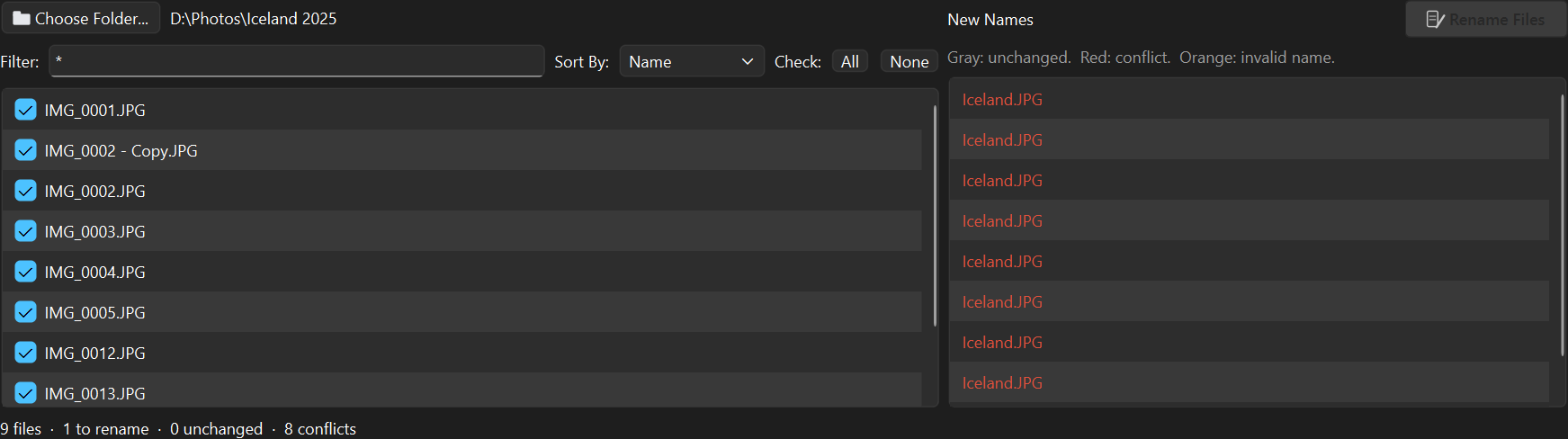
that button stays greyed out while any two files would end up sharing a name. If the result is
not what you wanted, one menu item puts every file back.
What people use it for
Photos off a camera
IMG_4821.JPG tells you nothing. Iceland_20250714_012.JPG sorts by
date and says where you were.
Scans and downloads
Strip the junk a scanner or a browser added, renumber the results from one, and pad the
numbers so they sort correctly.
Anything numbered wrong
Files that sort as 1, 10, 11, 2 because nobody padded them. Renumber the whole set in one
pass, in the order you choose.
Quick start
Four steps, and you can stop at any of the first three without having changed anything.
Choose a folder. Press Choose Folder… and pick one. Its files
appear on the left.
Build the new name. Click the token buttons, or pick a ready-made pattern
from Presets. The right panel updates as you go.
Read the right panel. Red means two files would collide. Grey means nothing
would change. Anything else is what you are about to get.
Press Rename Files. It turns teal once the batch can safely run. Not what
you wanted? File › Undo Last Rename.
The two panels scroll and select together, so a row on the right is always the same
file as the row on the left.
User manual
Everything the application does, in the order you meet it.
1. Installing
Windows. Run frwbSetup-1.0.1.exe. It installs for your user
account only, so there is no administrator prompt and nothing lands in
Program Files. If you would rather not install anything, take the portable
zip instead, unpack it anywhere and run FRWB.exe from the folder.
macOS. Unzip and drag FRWB.app to Applications.
macOS will refuse it the first time. The app is not code-signed, which
needs a paid Apple Developer account this project does not have. Right-click the app and
choose Open — that dialog has a button the plain double-click does not.
Or clear the flag from a terminal: xattr -dr com.apple.quarantine FRWB.app.
Your settings live in your own user folder and are remembered between sessions: the last
folder, the filter, the sort order and every naming setting.
2. Choosing a folder
Press Choose Folder… (or Ctrl+O). Only the files
directly in that folder are listed; subfolders are not searched.
Filter narrows the list. *.jpg; *.png keeps only those.
Press Enter to apply it.
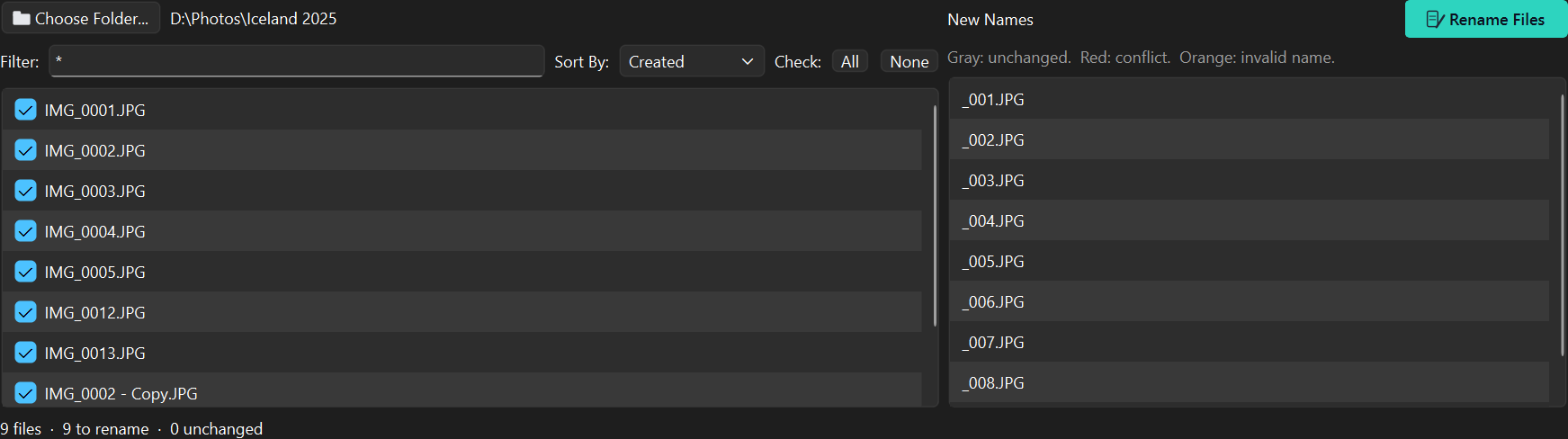
Sort By sets the order of the list, which is also the order the
counter counts in. Name uses natural order, so file2 comes before
file10. You can also sort by created date, modified date, or the date a
photo was taken.
Check boxes leave a file out. All and None tick or
untick everything. An unticked file keeps its name and does not consume a counter value.
Double-click any row, in either panel, to open that file in whatever
application your system uses for it, exactly as the file manager does.
Press F5 if the folder changed behind the application's back.
3. Name Pattern
The pattern is the new name, without its extension. Anything you type is kept exactly as
typed, and anything in braces is replaced for each file.
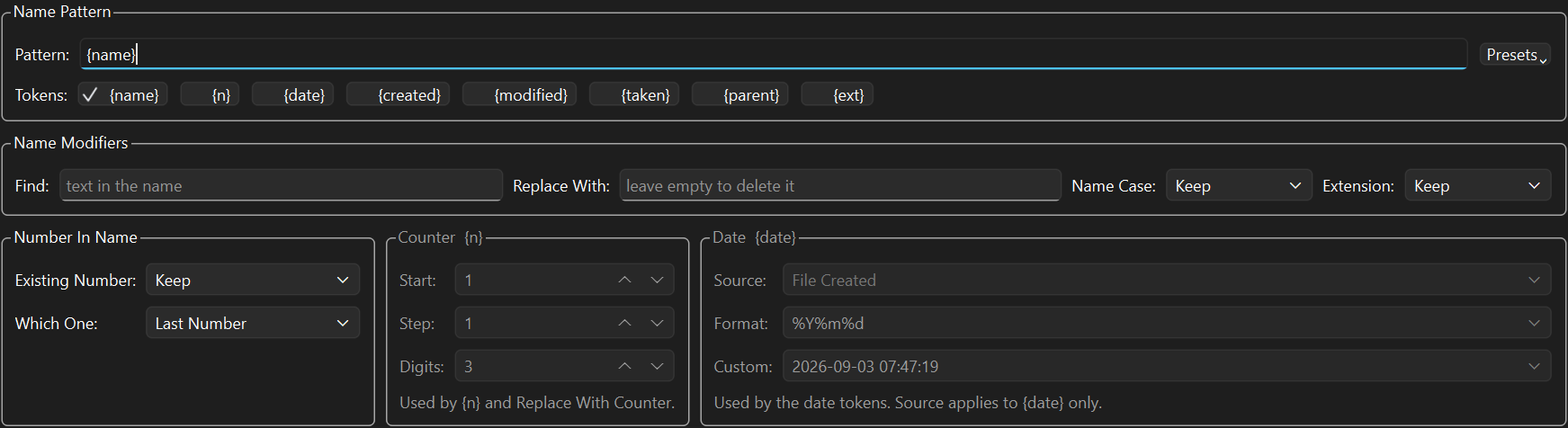
A button per token. Each wears a tick while its token is in the pattern, so the
row tells you what the new name is made of.
Token
Becomes
{name}
The original name, after the Number In Name and Find steps
{n}
The counter
{date}
The date from the Date box, in its format
{created}
The file's created date
{modified}
The file's modified date
{taken}
The photo's EXIF date, falling back to the modified date
{parent}
The name of the folder
{ext}
The original extension, without its dot
Clicking a token button inserts it at the cursor. The buttons insert rather than
switch, which matters more than it sounds: a pattern is ordered and can hold text
of your own. {name}_{n} and {n}_{name} are different results from
the same two tokens, and Holiday_{n} puts a word you chose in front of every
file. Neither survives being reduced to eight on-off switches.
Presets offers ready-made patterns such as {name}_{n} or
{date}_{n}. Picking one fills the field and the ticks follow. A token you
misspell is left as typed, so you see it in the preview instead of losing it.
4. Name Modifiers
Changes made to the text itself, on either side of the pattern.
Find and Replace With work on the original name
before the pattern reads it, which is why {name} picks up the
result. Leave Replace With empty to delete the text.
Name Case applies to the finished name: keep, lower, UPPER or Title
Case.
Extension changes the case of the extension only. The extension itself
is always kept.
5. Number In Name
Cameras and downloads number things: IMG_0042.jpg, Scan 12.pdf.
This box says what happens to that number.
Existing Number
Result for IMG_0042
Keep
IMG_0042
Replace With Counter
IMG_001, IMG_002, … in list order
Replace With Date
IMG_20240102_030405
Remove
IMG, taking the separator with it
Which One picks the last or the first number when a name holds several,
as in 2024_pic_07.
6. Counter and Date
Counter has a start, a step and a number of digits, so 3 digits gives
001. It runs in the order of the list and skips unticked files. The step can be
negative to count down, and it steps straight over zero, which would hand every file the
same name.
Date takes its Source from the file's created date, its modified
date, the photo's EXIF date, or a custom date and time you pick. The Format uses
the usual strftime codes: %Y year, %m month,
%d day, %H hour, %M minute, %S second.
Both boxes grey out when nothing in the name would use them, so the controls
that matter are the ones you can reach.
The greying happens in stages, because these are not one switch:
Control
Live when
The three counter controls
{n} is in the pattern, or Existing Number is Replace With Counter
Date Format
any date token is in the pattern, or Existing Number is Replace With Date. Every date token is printed through it
Date Source
{date} is in the pattern, or Existing Number is Replace With Date. The other date tokens name their own date, so there is nothing for Source to pick
Date Custom
Source is live and set to Custom Date/Time
So a pattern of {created} leaves Format live and greys Source:
you can change how the date is printed, but not which date it is.
7. Reading the preview
The right panel is colour-coded, and the line under the two lists counts each kind.
Colour
Meaning
Normal
Will be renamed
Grey
Unchanged, or unticked
Red
Conflict. Two files would get the same name, or the name is already taken in the folder
Orange
Invalid. An empty name, or one the system reserves
A pattern with no counter would give every file one name. All nine are flagged,
and Rename Files stays greyed out.
Hover any name for the reason. Rename Files stays disabled while a single
conflict or invalid name remains, and takes colour the moment the batch can run.
8. Renaming and undo
Press Rename Files (Ctrl+R) and confirm. The work
happens off the interface thread, so the window stays responsive on a large folder.
Renaming runs in two phases: every file first moves to a temporary name,
then to its final one. That is what lets a batch swap two names, or renumber a series in
place, without one rename overwriting a file the next one still needs. A file that
unexpectedly cannot be renamed is reported and put back, never replaced.
File › Undo Last Rename (Ctrl+Shift+Z)
returns every file in the last batch to its previous name. Only the most recent batch is
kept.
9. Theme and manual
Help › Theme chooses light, dark, or whatever your system is set
to, which is the default. Every icon in the application is drawn twice so it reads on
either.
The same window on a light theme.
Help › User Manual (F1) opens
this
manual on GitHub, and falls back to the copy inside the application when there is no
network.
10. Troubleshooting
Rename Files is greyed out
Something in the right panel is red or orange, or no name would actually change. Hover the
button for the reason it gives.
The counter or date boxes are greyed out
Nothing in the new name uses them. Add {n} or a date token to the pattern, or
set Existing Number to replace with one. See
Counter and Date.
A photo has no EXIF date
FRWB reads the date from JPEG and TIFF headers. Other formats, including HEIC and camera
raw files, fall back to the file's modified date, and the preview says so when you hover
the name.
Some files were not renamed
A dialog lists each one and why. The usual cause is a file open in another application.
Close it and press F5, then rename again.
I renamed the wrong thing
File › Undo Last Rename, as long as you have not run a second
batch over the top.
What it will not do to your files
A renaming tool is trusted with a whole folder at once, so it is worth being explicit about
the limits it works inside.
Never overwrites
A file unexpectedly in the way is reported and the rename is rolled back, on every
platform. It is never silently replaced.
Never renames blind
The preview is produced by the same code that performs the rename, so what you read is what
happens.
Never leaves the machine
No account, no telemetry, no network. The only request it ever makes is checking whether
the online manual is reachable, when you press F1.
Only the folder you chose
Subfolders are not touched, and neither is anything you unticked.
Undo for the last batch
Every applied rename is recorded so the whole batch can be put back in one step.
Open source
MIT licensed, and the full source
is public, so anyone can check what it does with their files.
Download FRWB 1.0.1
Free, no account, no ads, no telemetry. You do not need Python or anything else installed.
Windows installer
About 33 MB. Installs for your user only, so there is no administrator prompt. Adds a
Start menu entry and an optional desktop shortcut.
Every link opens the GitHub release page — scroll to Assets
and pick the file for your system. Each build is produced by a
public
workflow straight from the source, and checks itself before it is published.
Support this work
FRWB is free. No ads, no account, no telemetry, and nothing is ever sent anywhere — it
reads the folder you point it at and nothing else. That is how a small desktop tool ought to
work, and it is also why tools like it are hard to sustain: there is no data to sell and no
subscription to bill, so nothing pays for the work behind them.
The hard part of a renaming tool is not writing it, it is keeping it trustworthy. Windows and
macOS shift underneath it, Qt moves on, camera makers invent another way of storing the date a
photo was taken, and every so often a real folder breaks an assumption that looked safe. Adding
the macOS build to this one turned up a case where a rename could have replaced a file instead of
refusing — found, fixed and covered by a test before anyone met it. That is the kind of
attention a donation pays for, along with the next free tool.
If FRWB saved you an evening of renaming files by hand, or caught a clash before it cost you an
original, please consider chipping in.