CloakClip turns a private message into an ordinary line of characters that only
someone with your password can read. It travels through any chat, email or note — no
attachments, no plugins, nothing for the other person to install.
Version 1.0.2 · Windows and macOS · installer or portable file ·
nothing is ever sent anywhere
Why cloak text at all?
Anything you type into a chat, an email, or a note usually outlives the moment you send it.
Messages sit on servers, get forwarded, get backed up, and stay searchable long after the
conversation is over.
CloakClip does not try to replace any of that. It lets you protect just the
part that matters, inside the tools you already use. You cloak the text with a password, paste the
result wherever you were going to type it, and share the password by some other route. Anyone who
reads the conversation later sees a meaningless block of characters.
Because the output is plain text, it goes wherever text goes: a work chat, a
support ticket, an SMS, a printed page, a sticky note. The person at the other end needs CloakClip
and the password — nothing else.
What people use it for
Chats and email
Messages your employer or the platform keeps a copy of, and email that sits on servers, gets
forwarded and gets backed up.
Credentials in passing
A Wi-Fi password, an API key, a licence key, or account details you need to hand to a colleague
or a family member right now.
Tickets and shared docs
Issue trackers and shared documents that quietly have a wider audience than you had in mind
when you wrote them.
Personal notes
Recovery codes, account numbers, or a private journal entry inside a notes app that syncs to
somebody else's cloud.
Security answers
The made-up answers to security questions, kept where you will find them again but nobody else
can read them.
Channels you don't control
Anything routed through a service you have no say over — right down to leaving yourself a
note in a place you would rather not trust.
Quick start
From download to your first protected message in about a minute.
Download and install CloakClip. On Windows you can instead run the portable single file,
with nothing to install.
Pick a password from the Password menu (or press Ctrl+P).
Choose something long, and agree it with the other person beforehand.
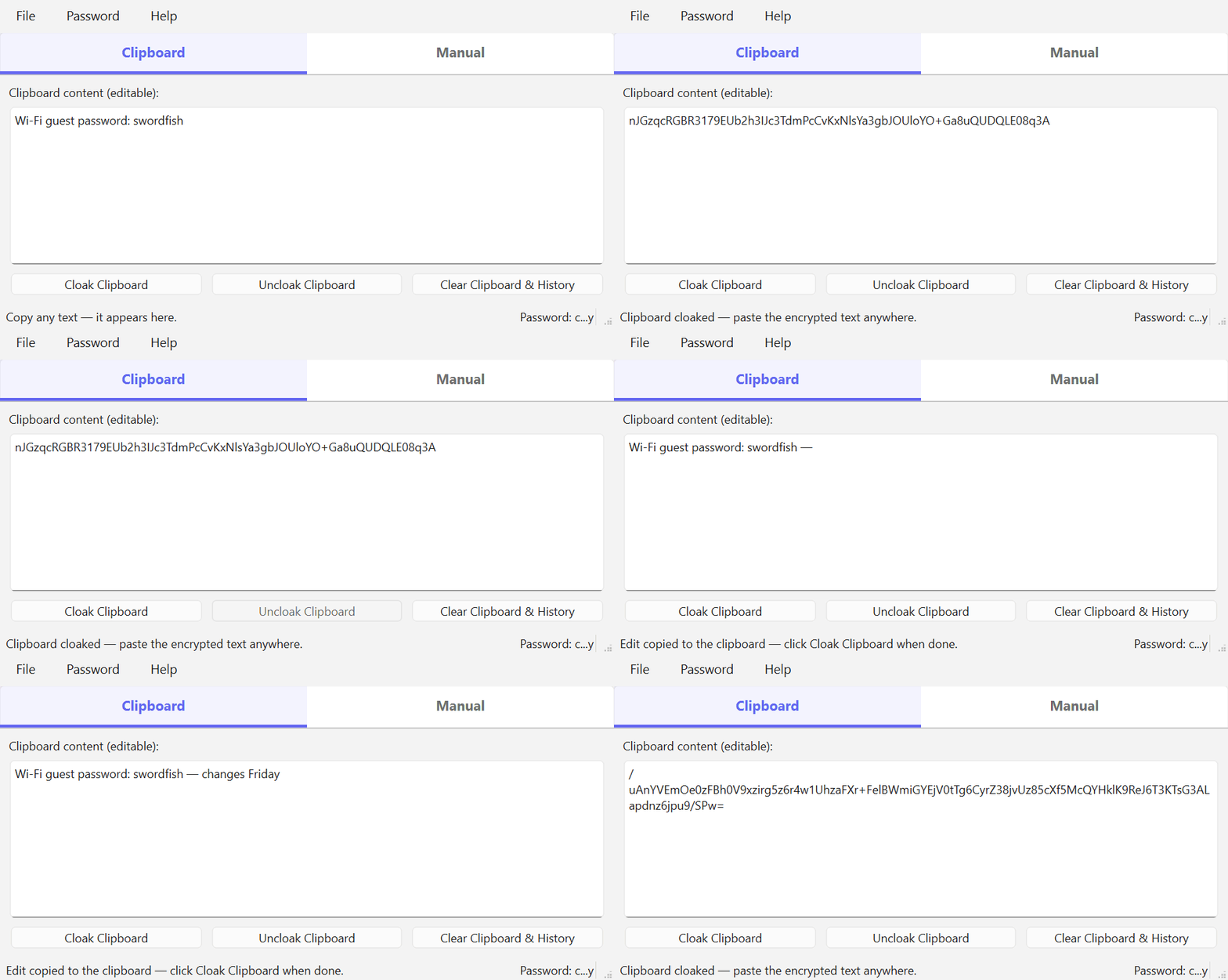
Copy the text you want to protect, then click Cloak Clipboard.
Paste into your chat or email as normal. What lands there is the encrypted version.
To read one you receive: copy it, click Uncloak Clipboard, and the original
text is on your clipboard — or read it on the Manual tab without it touching the
clipboard at all.
Send the password a different way than the message. If you email a cloaked
block, do not email the password — text it, say it in a call, or hand it over in person.
Both halves in the same place means no protection at all.
User manual
Everything CloakClip does, in the order you are likely to need it.
1. Installing
CloakClip is self-contained. There is no runtime to add, and nothing is written outside your
own user folder.
Windows
There are two downloads of the same app — pick whichever suits you:
CloakClipSetup-version.exe installs it properly: a Start menu entry, an
optional desktop shortcut, and an entry in Settings > Apps to remove it
again. It installs for your account only, so no administrator rights are needed. To upgrade,
run the newer installer; it replaces the old version and keeps your passwords and
settings.
CloakClip.exe is the portable version: a single file with nothing to install.
Put it anywhere you like — your desktop, a folder, a USB stick — and double-click
it.
The first time, Windows may show a SmartScreen notice because neither file is code-signed:
choose More info, then Run anyway.
macOS
Download CloakClip-macos.zip, unzip it, and move CloakClip.app to
your Applications folder. The first time, right-click the app and choose Open
rather than double-clicking, so macOS lets you run an unsigned app.
CloakClip stores two things on your machine and nothing else: your remembered passwords
(encrypted) and your window position and theme choice. See
Passwords for where they live and how to erase them.
2. The Clipboard tab
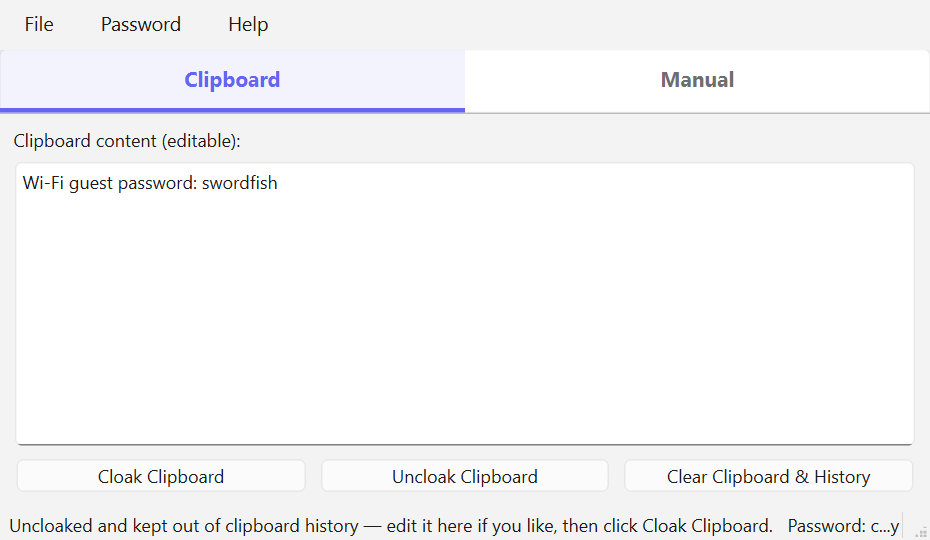
This is the fast path, and the one most people use. The box always shows what is currently on
your clipboard, and the three buttons act on it directly.
The Clipboard tab, just after uncloaking a message.
Button
What it does
Cloak Clipboard
Encrypts whatever is shown and puts the encrypted version on the clipboard, ready to
paste.
Uncloak Clipboard
Decrypts it and puts the original text back on the clipboard, ready to paste. The
decrypted text is marked so Windows keeps it out of clipboard history.
Clear Clipboard & History
Empties the clipboard and purges Windows clipboard history. Items you pinned in
Win+V are kept.
Editing before you send
The box is editable, which turns the tab into a complete round trip. Uncloak a message you
received, change the wording in place, and click Cloak Clipboard to encrypt
your reply — then paste it back into the conversation. The plain text of your reply never
has to exist anywhere outside the app.
Your edits reach the clipboard a moment after you stop typing, and edits to a decrypted
message stay protected exactly as the decryption was. If you click Cloak immediately after
typing, your latest edit is used — not a stale copy.
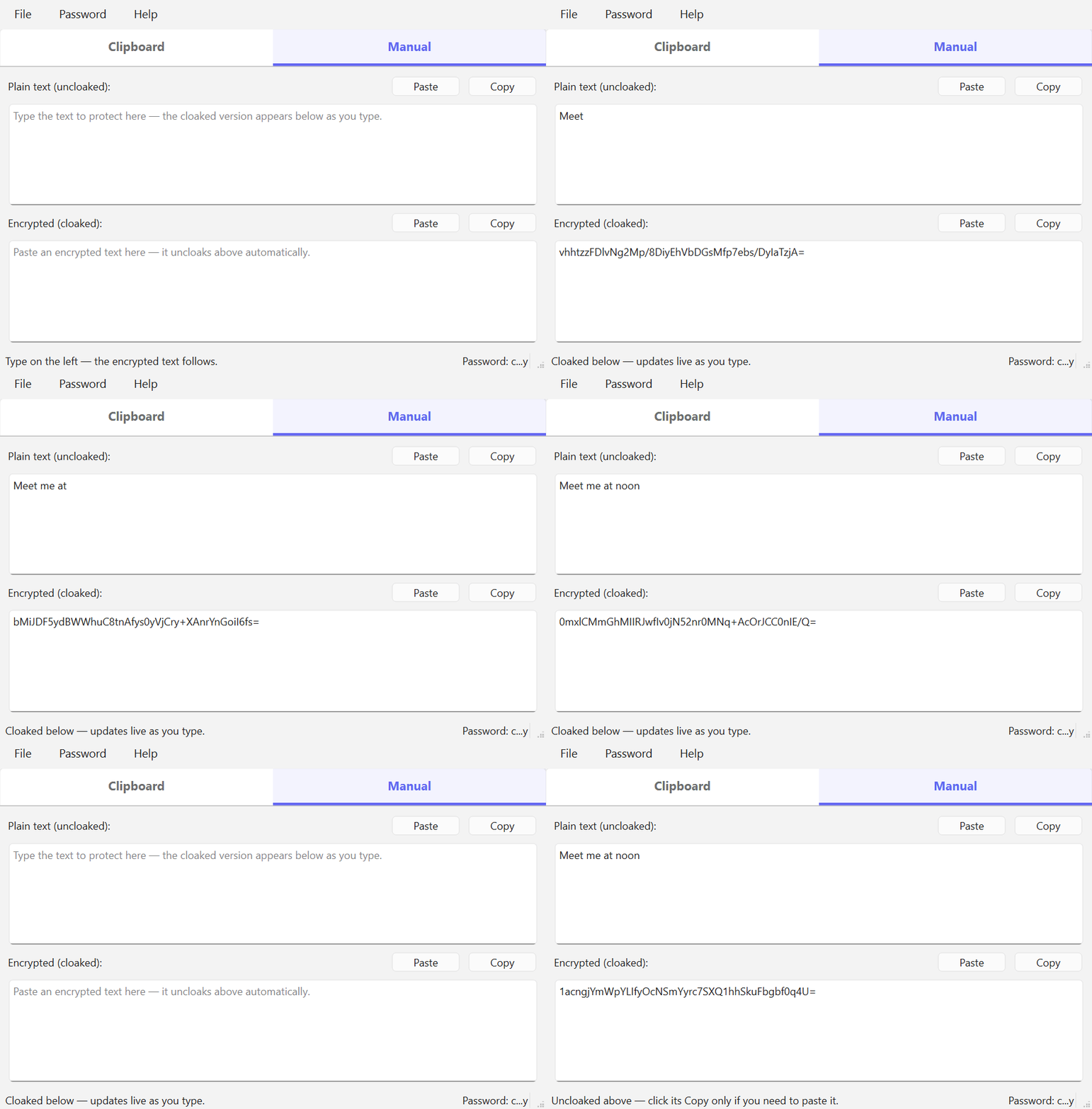
3. The Manual tab
The Manual tab is for when you want full control, or when you want to read something without
it ever touching your clipboard. It has two fields that stay in sync, and no Cloak or Uncloak
buttons at all.
Type on one side, and the other side follows.
Plain text (uncloaked) — type here and the encrypted version appears
below as you type.
Encrypted (cloaked) — paste a message you received here and the
original text appears above it.
Each field has its own Paste and Copy buttons. Nothing goes
to your clipboard until you press one, which is what makes this the safest way to read
something: the secret is displayed on screen and nowhere else.
Things worth knowing
Conversion runs a moment after you stop typing, not on every keystroke, so the encrypted
field settles instead of flickering.
A string you paste into the encrypted field is left exactly as pasted. It is only
regenerated if you then edit the plain text.
While an encrypted string is incomplete, or if the active password is wrong, the plain
field simply stays empty and the status bar says so. Nothing is destroyed.
4. Passwords
One password is active at a time, shown masked at the bottom right of the window. Everything
you cloak or uncloak uses it until you choose another.
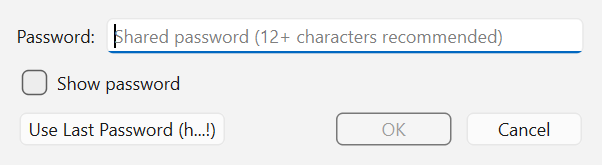
The password dialog, offering the last password in one click.
The Password menu
Last Password Used — reselects your most recent password.
A list of up to ten recent passwords, each shown only as its first and
last character — h…! — enough to recognise, not enough to
reveal.
New Password… (Ctrl+P) opens the dialog
above, with a Show checkbox and a one-click Use Last Password button.
Clear Password History erases the stored list entirely.
A password is only remembered after it actually works — a successful uncloak,
or a cloaked result you copied. Typos and wrong guesses are never stored.
Where they are stored
On Windows the list is encrypted with DPAPI and saved as
%APPDATA%\CloakClip\passwordHistory.bin, tied to your Windows account: unreadable
from another account or another machine. It is decryptable by software running as you, which is
the same trade-off browsers make for saved passwords — if you would rather keep nothing,
use Clear Password History.
Share the password out of band. Whatever channel carries the cloaked
message, use a different one for the password. Putting it in the next chat message is the
same channel, and defeats the point.
5. Theme and window
Help > Theme offers Use System Theme (the default),
Light and Dark. The override applies to CloakClip alone and
is remembered. Left on system, the app follows along if you switch Windows between light and
dark while it is running.
CloakClip also reopens at the size and position you left it. If that position was on a monitor
that is no longer attached, the window is recentred on your main screen instead of opening
somewhere you cannot reach. Both settings live in
%APPDATA%\CloakClip\settings.ini; delete the file to start fresh.
6. Closing the app
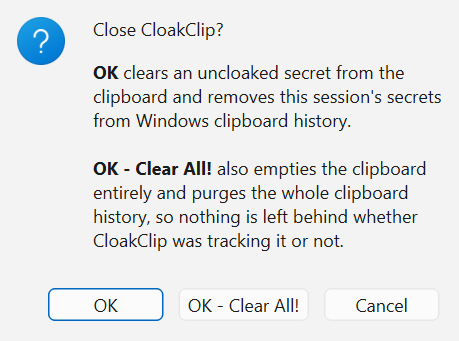
Closing the window asks how you would like to leave.
Two ways out, and a way to change your mind.
OK — the normal tidy-up: a decrypted secret is cleared from the
clipboard, and this session's secrets are removed from clipboard history.
OK - Clear All! — all of that, and then the clipboard and the whole
clipboard history are emptied outright.
Cancel — or Esc — keeps the app open, so a mistaken
click on the window's X costs nothing.
File > Exit and Clear All! (Ctrl+Shift+Q)
does the thorough version in one step without asking.
Clear All exists as a deliberate second line of defence. The automatic cleanup is careful, but
it can only remove text it recognises — the exact strings this session handled. Clear All
does not try to recognise anything; it removes everything. Use it whenever you would rather not
think about what the app happened to see.
7. How your secrets are protected
Windows keeps a history of everything you copy — the Win+V panel
— and can sync it to the cloud. Left alone, a decrypted secret you paste once survives
there long afterwards. This is the problem CloakClip spends most of its effort on.
Reading without copying
On the Manual tab, decrypted text is only ever displayed. If you just need to read a message,
it never reaches the clipboard, and there is nothing to clean up.
Marking secrets
When decrypted text does go to the clipboard, it carries the same markers password managers
use, so Windows keeps it out of clipboard history and out of cloud sync — while it still
pastes normally everywhere.
Text you cloak counts too
Whatever you hand CloakClip to encrypt was copied by some other app first, which already
recorded it. CloakClip tracks it so it can be removed later, even though the exposure happened
before CloakClip saw the text.
Re-copying is caught
If you copy a protected text again by hand — selecting it on screen, or re-copying it
after pasting — that copy is unmarked and Windows records it. CloakClip notices, protects
it again, and deletes the recorded entry.
Cleaning up on exit
Closing the app clears a copied secret from the clipboard and removes this session's secrets
from the history. Clear All! goes further and empties everything.
The honest limits. The automatic matching only recognises exact text from
the current session, so a secret you edited outside CloakClip, or one from a previous run, is
invisible to it — use Clear All for those. And nothing here can reach a secret you
already pasted somewhere else: clearing your clipboard does not un-send a message.
8. Encryption
CloakClip uses AES-256 in CBC mode. The key is derived from your password
with SHA-256, a fresh random 16-byte initialization vector is generated for every message and
prepended to the ciphertext, and the whole thing is Base64-encoded so it survives being pasted
anywhere.
Why the same text gives a different result each time
Because the initialization vector is random, cloaking the same message twice produces two
completely different strings. Both decrypt to the same text — use whichever you copied.
This is deliberate: without it, identical messages would produce identical output, and anyone
watching could tell that two messages matched without knowing the password. The only practical
consequence is that you cannot compare two cloaked strings to see whether they hold the same
secret.
Use a long password. The key is derived with a single hash rather than a
slow stretching function like PBKDF2 or Argon2, so a short or common password is vulnerable
to offline guessing by someone who has the cloaked text. Length is what protects you.
Any tool implementing the same scheme can read CloakClip's output, and CloakClip can read
theirs.
9. Windows and macOS
Encrypting and decrypting work identically on both. The difference is in the clipboard
protections, which depend on facilities the operating system provides.
Windows
macOS
Cloak and uncloak
Yes
Yes
Both tabs, passwords, themes
Yes
Yes
Keeping secrets out of clipboard history
Yes
Not yet
Purging clipboard history
Yes
No system history to purge
Remembering passwords
Yes, encrypted with DPAPI
Not yet
macOS has no built-in clipboard history, so that particular exposure does not exist there in
the first place. Where a protection is not implemented, the macOS build reports it as
unavailable rather than implying it is present.
10. Troubleshooting
“Wrong password” when I know the password is right
Check that the whole encrypted string was copied — a message wrapped across lines by an
email client can lose characters at the edges. Leading and trailing spaces are handled for you.
Nothing happens when I click Cloak
The clipboard is probably empty, or no password is selected. The status bar at the bottom of
the window always says which.
Windows says the app is unrecognised
The download is not code-signed. Choose More info then Run
anyway. To check that the file is genuine, compare its SHA-256 checksum with the one
listed in CloakClip-checksums.txt on the release page — in PowerShell,
Get-FileHash followed by the file name prints it.
The clipboard is busy
Another program was holding the clipboard at that moment. CloakClip retries automatically and
tells you if it truly could not write — just try again.
A secret is still in Win+V history
Something reached the history by a route the app could not match — for example text you
edited elsewhere, or a secret from a previous session. Use Clear Clipboard &
History, or close with Clear All!.
I want to erase everything CloakClip stored
Use Password > Clear Password History, then delete the folder
%APPDATA%\CloakClip. That is everything the app keeps. Uninstalling the app leaves
that folder in place on purpose, so a reinstall does not lose your settings.
Download CloakClip 1.0.2
Free, no account, no ads, no telemetry. Your text never leaves your machine.
Windows
CloakClipSetup-version.exe, about 37 MB, installs it with a Start menu
entry — no administrator rights needed. Or take CloakClip.exe, about
50 MB, the portable single file: put it anywhere and run it.
Both links open the GitHub release page — scroll to Assets
and pick the file for your system. The
full source code is public, so anyone
can check exactly what the app does with their text.
Support this work
CloakClip is free, has no ads, collects nothing about you, and never sends your text anywhere.
Everything happens on your own machine. That is how a privacy tool ought to work — and it is
also why tools like it are hard to sustain: there is no data to sell and no subscription to bill, so
nothing pays for the work behind them.
Small tools take real time to build and, more importantly, to keep alive. Operating systems change,
security behaviour shifts underneath them, bugs surface in real use, and features get added because
someone asked. A donation, however small, is what makes that continued attention possible — and
it funds the next free tool as well as the upkeep of this one.
If CloakClip saved you a worry or a wasted hour, please consider chipping in.