Wager Book keeps your Kalshi and Polymarket wagers side by side: what you
staked, the odds you got, the most each can pay, what it is worth today, and what
every closed wager actually paid. One table, both sites, the whole history.
Version 0.8.3 · Windows and macOS · free and open source ·
your book stays on your own machine
Why not just use the sites' portfolio pages?
Each site shows its own positions, in its own words, and a wager that has closed slips into
a history list you have to dig for. Neither can tell you how you are doing across both.
Wager Book is the record the sites leave out: one place for
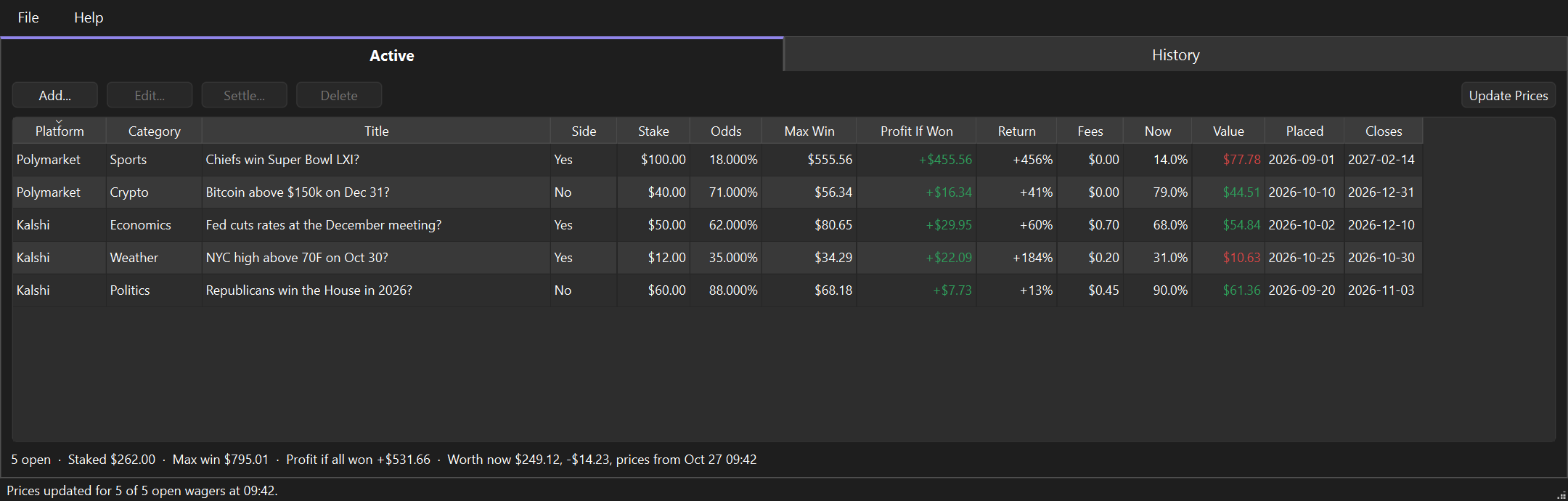
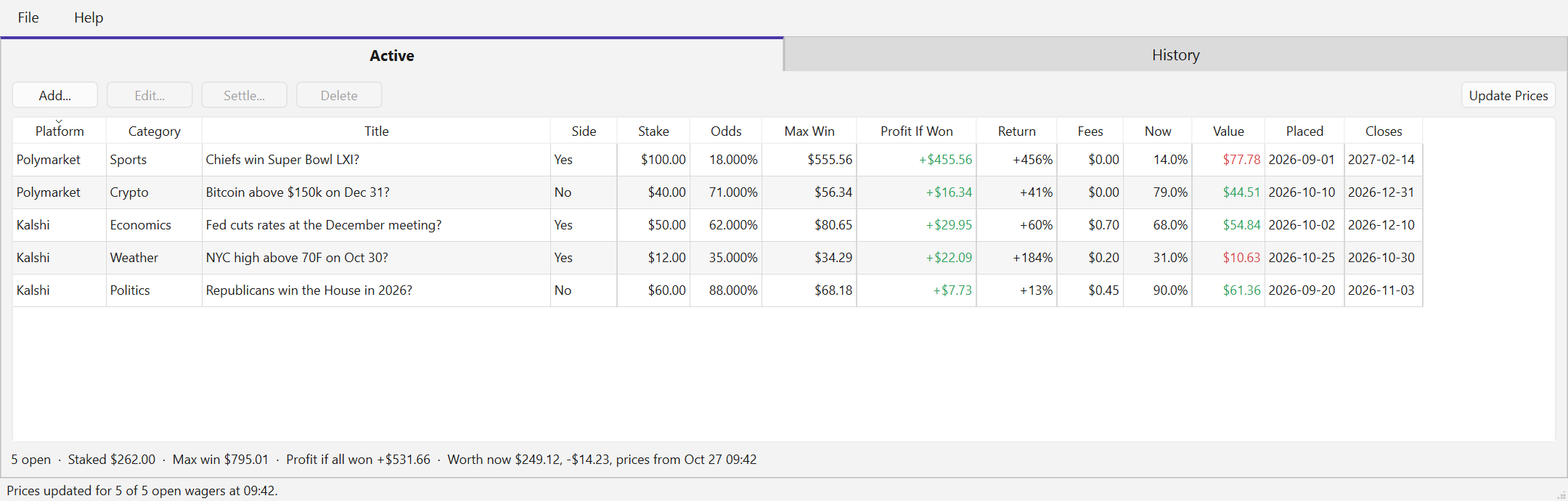
every wager, open or closed. Open wagers sit on the Active tab with today's
sell price beside what you paid. When a market resolves you settle the wager with what actually
came back, and it moves to History, where the win rate and the net result add up on
their own.
The arithmetic is the sites' own. Both sell contracts that pay $1 when
your side is right, so the price you paid is the market's chance of winning, the stake buys a
number of contracts, and the most a wager can pay is one dollar per contract. Wager Book works it
out as you type and shows its working in the manual.
What it is for
Both sites in one table
A Kalshi Senate race next to a Polymarket Super Bowl market, in the same columns, sorted
however you like.
The whole history
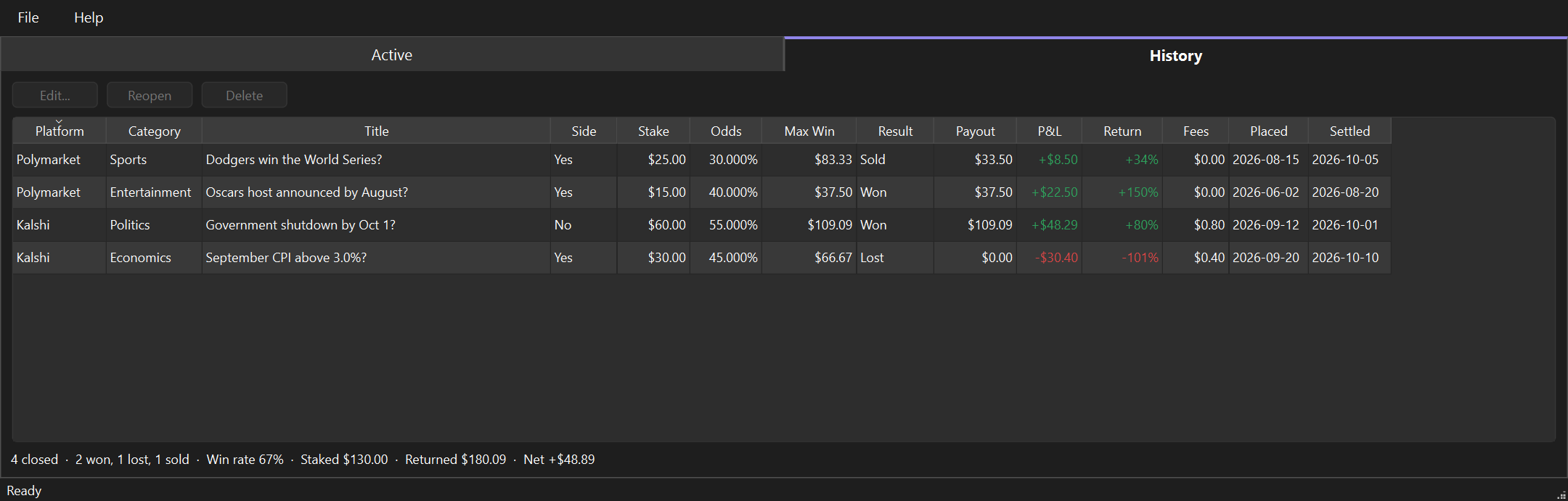
Every won, lost, sold and voided wager, with its payout and P&L, and a win rate that
counts only the markets that were actually decided.
Today's value, honestly
Update Prices asks both sites what each position could be sold for now - the bid, not the
last trade - so the book never flatters a wager.
Quick start
Four steps from an empty book to one that keeps itself current.
Add a wager. Press Add… or Ctrl+N and enter
the stake and the price you paid. Or bring a whole file in with File › Import
CSV….
Link it to its market. Paste the market's web address from your browser into
Ticker / Market Id. The app reads the market and the platform from it.
Press Update Prices. Or F5. Now and Value fill
in, green where a wager is up on what it cost and red where it is down.
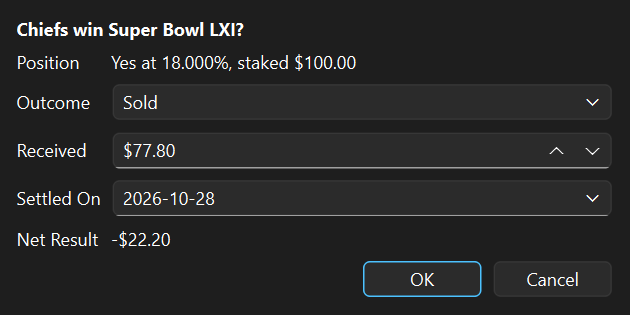
Settle it when it resolves. Choose Won, Lost, Sold or Voided; the usual
payout is filled in for you. The wager moves to History.
The History tab. The line underneath counts the outcomes, the win rate and the net
result across every closed wager.
User manual
Everything the application does, in the order you meet it.
1. Installing
Windows. Run wagerBookSetup-0.8.3.exe. It installs for your
user account only, so there is no administrator prompt and nothing lands in
Program Files. If you would rather not install anything, take the portable zip
instead, unpack it anywhere and run WagerBook.exe from the folder.
macOS. Unzip and drag WagerBook.app to Applications.
macOS will refuse it the first time. The app is not code-signed, which
needs a paid Apple Developer account this project does not have. Right-click the app and
choose Open — that dialog has a button the plain double-click does not.
Or clear the flag from a terminal: xattr -dr com.apple.quarantine WagerBook.app.
Installing a newer version replaces the old one. Your book is kept in your own user folder,
apart from the application, so upgrading or uninstalling never touches your wagers.
2. The two tabs
Active holds every wager that has not been settled yet.
History holds every one that has: won, lost, sold early, or voided.
Settling a wager moves it from one tab to the other, and Reopen moves it back.
The line under each table adds up what is in it. Under Active: how many are open, the total
staked, the most they could pay, the profit if every one won, and what the priced ones are
worth now. Under History: the outcomes, the win rate, what went in, what came back and the
net result.
3. Adding a wager
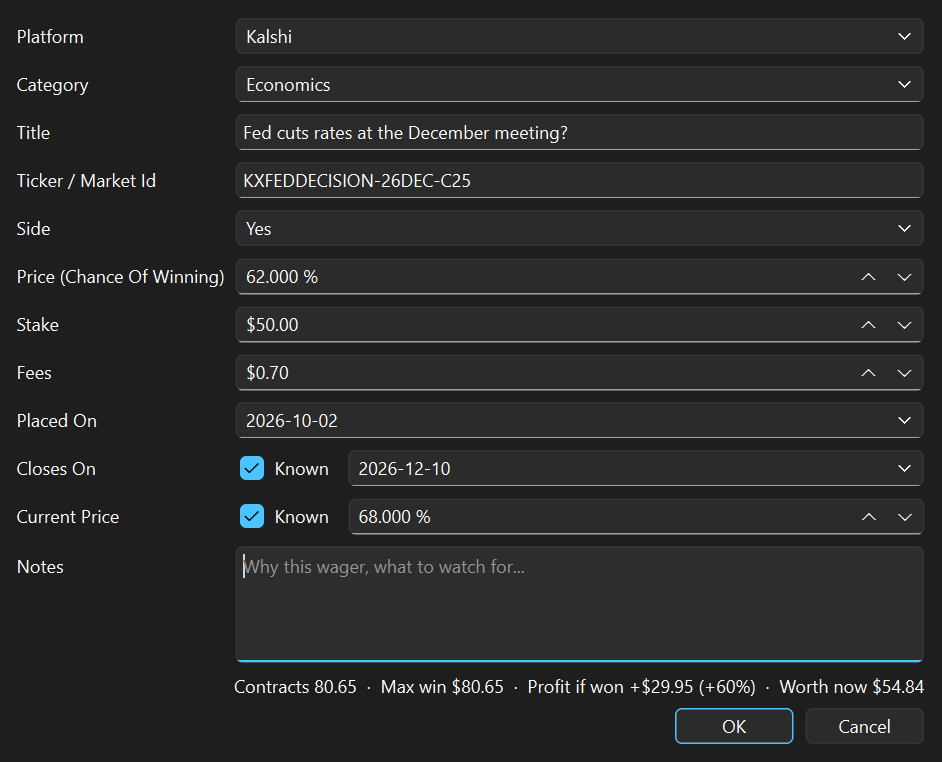
Click Add… on the Active tab, or press Ctrl+N.
The line above the buttons works it out as you type: contracts, the most the
wager can pay, the profit if it wins, and what it is worth now.
Field
What to put in it
Platform
Kalshi or Polymarket
Category
Politics, Sports, Economics and so on; type your own if none fits
Title
The market question, as the site words it. For a race with several candidates, include your candidate's name
Ticker / Market Id
Paste the market's web address, or type its ticker. Needed for Update Prices
Side
Yes or No — the side you bought
Price
What you paid per contract, as a percent to a thousandth: 40.000 % is 40 cents
Stake
The dollars you put in
Fees
What the site charged, if you keep it separate from the stake
Placed On, Closes On
When you bought, and when the market is expected to resolve
Current Price
Filled in by Update Prices; type one only for a market it cannot reach
Notes
Why you took it, what to watch for
4. How the numbers work
Both sites sell contracts that pay $1 if your side is right and nothing if
it is not. Everything in the table follows from that:
Column
Worked out as
Odds
The price you paid per contract - the market's chance that your side wins
Max Win
Stake ÷ Price: the number of contracts, each worth $1
Profit If Won
Max Win − Stake − Fees
Return
Profit If Won ÷ Stake
Now
What one contract could be sold for today
Value
Contracts × Now
A worked example: $99.99 on Yes at an average of 11.685 cents.
contracts $99.99 / $0.11685 = 855.72
max win 855.72 x $1 = $855.72
profit if won $855.72 - $99.99 = +$755.73
A No wager uses the No price: buying No at 70 cents is a 70% chance in the
market's eyes, not 30%.
Fees and the average price. Kalshi takes its trading fee when your order
fills and includes it in the cost, so its "average price" sits a little above the price you
bought at. Enter the cost as the stake with fees at $0, or split them - the profit if won
comes out the same either way.
5. Linking a wager to its market
A wager can only be priced once the app knows which market it is. Open the wager
(double-click it), click in Ticker / Market Id, and paste the address of the
market's page from your browser:
The app reads the address as you leave the box, fills in the market's id and sets the
platform. Typing a Kalshi ticker or a Polymarket id directly works too.
Many addresses name a whole race, not one candidate. The app picks the candidate whose name
is in the wager's title - "Texas Senate winner? - Ken Paxton" finds Ken Paxton - and stores
that market's own id, so the next update goes straight to it. A middle initial on the site
("Susan M Collins") still matches a title without one.
On Polymarket, clicking a position in Portfolio opens a "You bought" card,
not the market. Close it, search for the market at the top of the site, open it, and copy
the address from there.
Polymarket US and polymarket.com are separate exchanges with separate
prices. The app asks Polymarket US first and polymarket.com only for an id the US exchange
does not have, so copy the address from the site you actually trade on.
6. Updating prices
Click Update Prices above the Active table, or press F5. The app
asks Kalshi and Polymarket for the current price of every linked wager. It takes a second or
two, and the window stays usable while it runs. Both sites publish prices publicly, so no
login or API key is involved and nothing about your account is sent.
The price taken is the one you could sell at right now: the best bid for the
side you hold. That is what Kalshi's Cash Out uses, and it never flatters a position the way
the last trade or the asking price can.
Value colour
Meaning
Green
Worth more now than it cost, stake and fees together
Red
Worth less now than it cost
Plain
Break-even to the cent, or no price yet
Rest the pointer on a Now or Value cell to see when its price was fetched and the gain or
loss in dollars. The line under the table says how many prices were fetched and how old the
oldest one is, so a price typed in by hand is never passed off as today's.
When a wager is not priced
No ticker yet - the status bar counts these. Link them as above.
Cannot be matched, closed, or nobody is bidding - a box lists each wager
and the reason. A closed market means the wager should be settled.
No connection - nothing is changed, and the box says which site did not
answer.
7. Settling a wager
When a market resolves, select the wager on the Active tab and click
Settle…. Choose the outcome and the usual payout is filled in - the full Max
Win for a win, nothing for a loss, the stake back for a voided market - and can be changed to
what actually arrived. For a position you sold before the market resolved, choose
Sold and enter what you got for it.
The net result updates as you change the amount received.
Settled by mistake? Select it on the History tab and click Reopen.
8. Importing and exporting
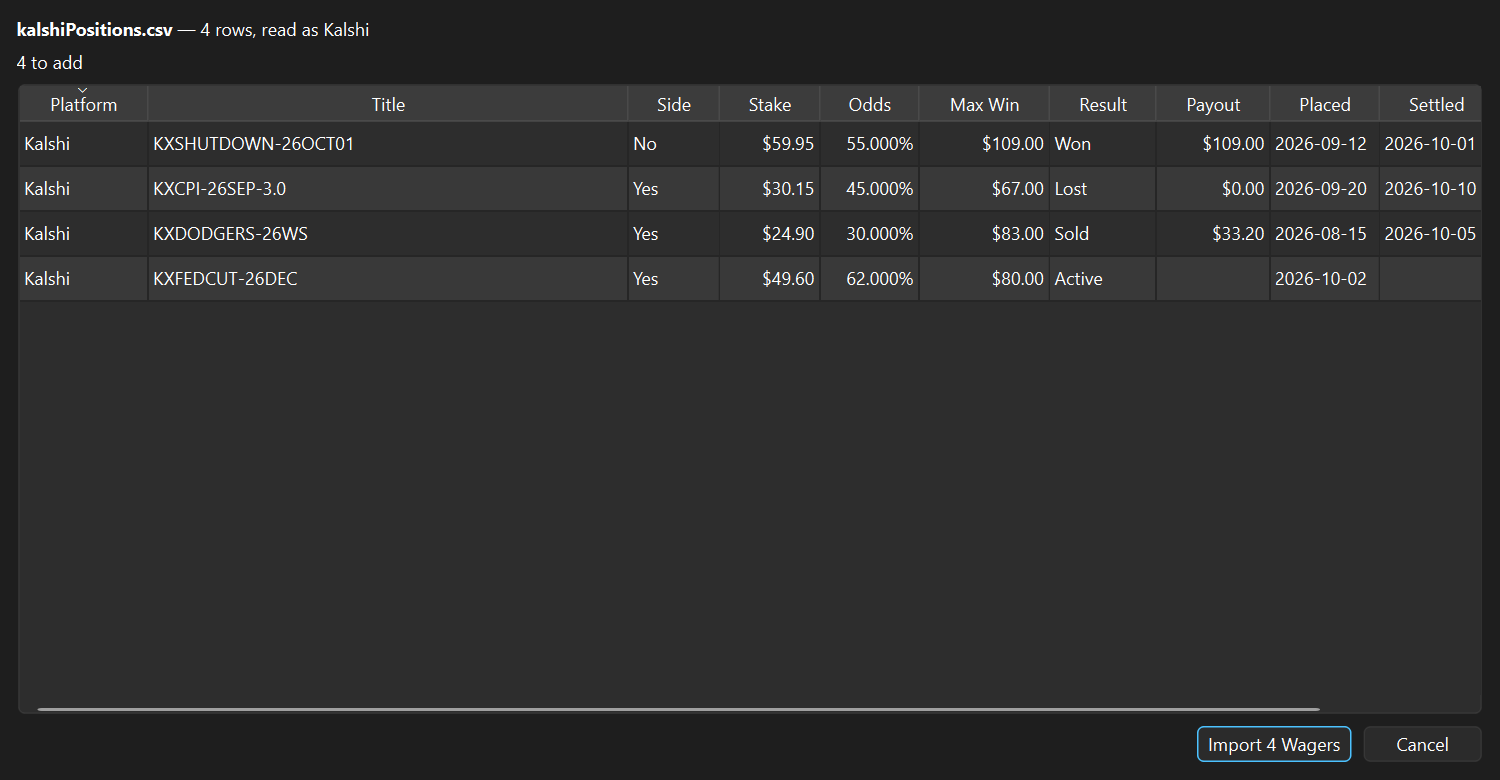
File › Import CSV… reads wagers out of a file so they do not have to
be typed one at a time. A preview shows how many rows will be added, how many are already in
the book, and every row it could not read with the reason. Nothing reaches the book until you
click Import.
Rows that carry a result arrive already settled, with their payout and date.
Kalshi - on the website, the account menu's Documents has the
transaction history as a CSV per year. The importer reads the layouts Kalshi has used.
Polymarket - there is no official download; third-party exporters write an
activity.csv the importer reads.
Your own spreadsheet - run File › Export CSV… once for the
header row, fill it in, and import it back.
Sells and redemptions are listed rather than imported - settle the matching wager instead -
and a row for the same market, side and day as one already in the book is skipped, so
importing a file twice adds nothing. File › Export CSV… writes every
wager to a file for a spreadsheet or a backup.
9. Editing, deleting and sorting
Double-click a row, or select it and click Edit…, to change any field. A
price you leave alone keeps every digit it had. Delete asks first and removes
the wager for good; a wager that lost should be settled as Lost instead, so the History totals
stay true.
Click a column heading to sort by it, and again to reverse. Money columns sort by amount, not
by the text. A highlighted row clears as soon as you click anywhere else.
10. Theme, window and manual
Help › Theme chooses light, dark, or whatever your system is set to,
which is the default. The window reopens where you last closed it, at the same size.
The same window on a light theme.
Help › User Manual (F1) opens
the
manual on GitHub, and falls back to the copy inside the application when there is no
network.
11. Where your book lives
The whole book is one file, wagers.json, in your own user folder - on Windows,
%APPDATA%\Wager Book. It is rewritten through a temporary file on every change, so
a crash mid-save leaves the previous book intact. Copy it to back it up.
settings.ini beside it remembers the theme and the window's position. Delete it
to start from the defaults; your wagers are not in it.
12. Troubleshooting
Update Prices skips a wager
It has no ticker yet, or the race it names has several candidates and none of their names is
in the title. The box lists the choices: add the name to the title, or paste the candidate's
own market address.
Every wager says the site could not be reached
The computer is offline, or a firewall blocks the app. Nothing was changed; try again once the
connection is back.
My Polymarket price differs from the site
Check the address came from the exchange you trade on - Polymarket US and polymarket.com are
different markets. And remember the app shows the sell price, a little below the buy price the
site's buttons show.
The app opened with an empty book
If wagers.json was damaged the app says so at start-up and opens empty without
overwriting it. Move the file aside, or fix it in a text editor, and start again.
What it does with your data
A record of your bets is personal, so it is worth being explicit about where it goes - which
is nowhere.
Your book stays on your machine
One file in your own user folder. No account, no cloud copy, no telemetry.
No login, no keys
It never asks for your Kalshi or Polymarket password or an API key, and never sees your
account.
Only public prices
Update Prices reads the sites' public market data, naming only the markets you linked. Nothing
about you is sent with it.
It never places a bet
Wager Book records wagers. It cannot buy, sell or move money, on either site.
Uninstall keeps the book
Removing or upgrading the app leaves your wagers where they are.
Open source
MIT licensed, and the full source
is public, so anyone can check what it does.
Wager Book is an independent tool and is not affiliated with, endorsed by or
connected to Kalshi or Polymarket. Prices are read from their public data as published and can be
delayed or wrong; nothing in the app or on this page is financial advice. Trade only what you can
afford to lose.
Download Wager Book 0.8.3
Free, no account, no ads, no telemetry. You do not need Python or anything else installed.
Windows installer
About 34 MB. Installs for your user only, so there is no administrator prompt. Adds a
Start menu entry and an optional desktop shortcut.
Every link opens the GitHub release page — scroll to Assets
and pick the file for your system. Each build is produced by a
public
workflow straight from the source, and checks itself before it is published.
Support this work
Wager Book is free. No ads, no account, no telemetry, and your book never leaves your machine
— the only thing it ever asks the internet for is the public price of a market you linked.
That is how a small desktop tool ought to work, and it is also why tools like it are hard to
sustain: there is no data to sell and no subscription to bill, so nothing pays for the work behind
them.
The hard part of a tool like this is not writing it, it is keeping it right. The sites change
their pages, their exports and their market data without notice, and a book is only useful while
its numbers can be trusted. Linking prices to the right exchange turned up that Polymarket US and
polymarket.com quote different prices for the same race — caught, fixed and covered by a test
before it misled anyone. That is the kind of attention a donation pays for, along with the next
free tool.
If Wager Book saved you a spreadsheet, or showed you how your wagers are really doing, please
consider chipping in.